
Set up RCourier in WooCommerce
To set up RCourier, install WooCommerce and the plugin, then follow the setup wizard to connect your store and choose your couriers. You can type your first AWB straight afterwards.
Requirements
- WordPress 6.4 or later
- PHP 8.1 or later
- WooCommerce
Install and connect
- Install and activate WooCommerce, then this plugin.
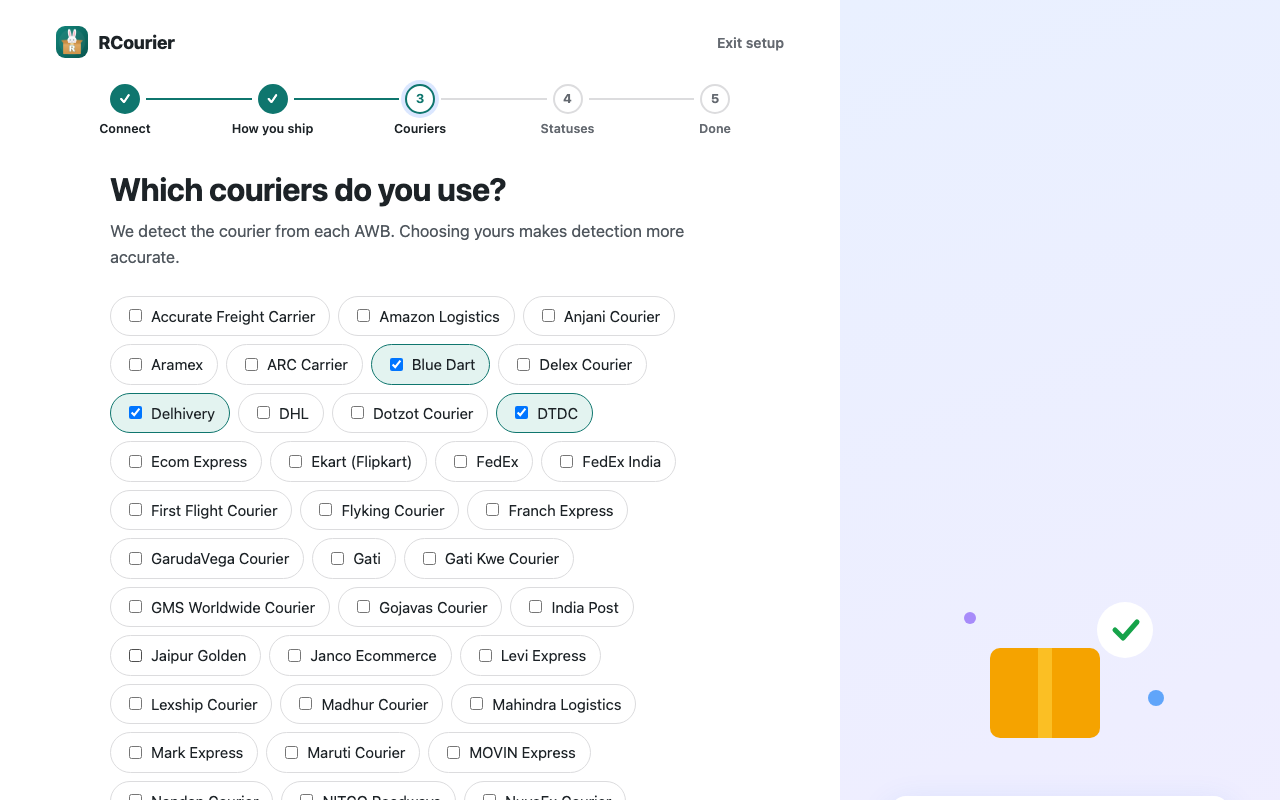
- Follow the setup wizard (WooCommerce > RCourier setup wizard). It connects your store to RCourier, asks how you ship, which couriers you use and how orders should change status.
- Type your first AWB on the WooCommerce orders list and press Enter. See Add an AWB.
Tracking runs on the RCourier service, so you sign in once with an email code (no password) and connect your store. You can pick from more than 60 couriers in the wizard.
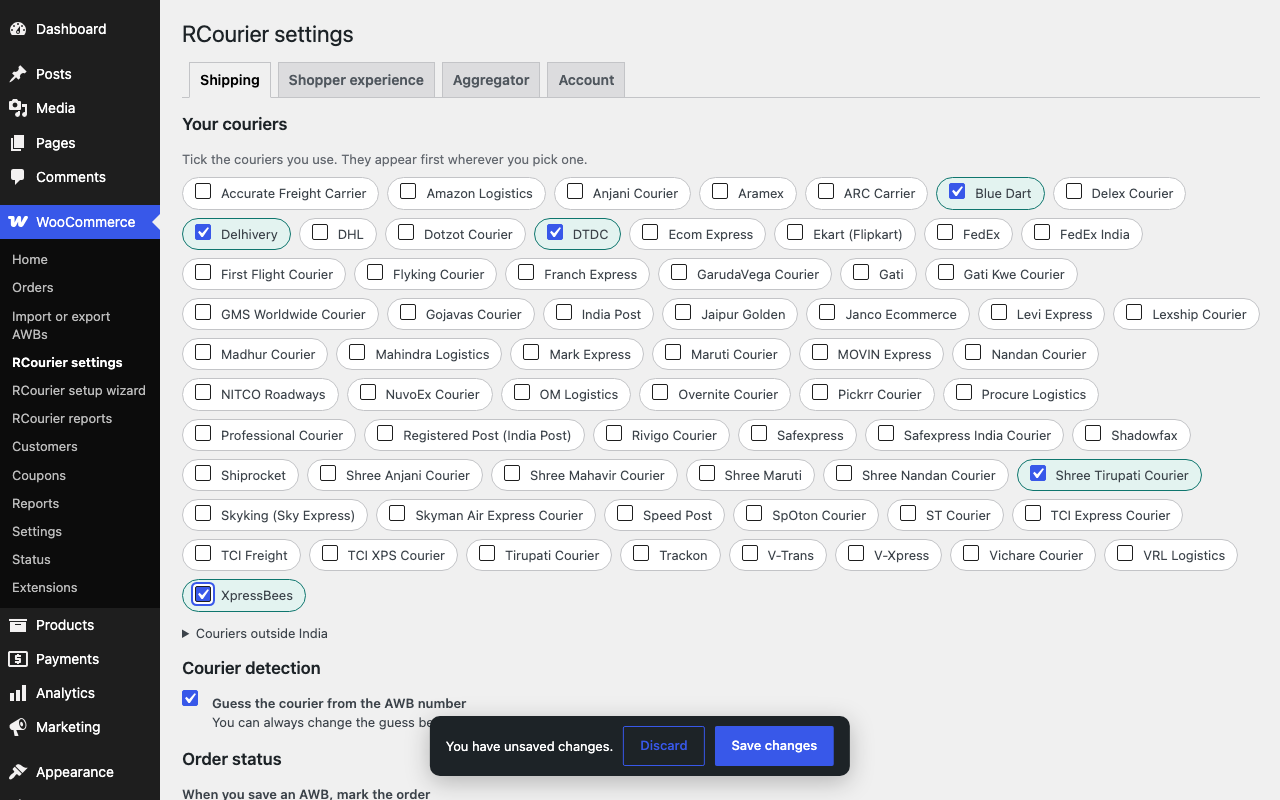
Settings
After setup, the plugin’s settings cover your couriers, automatic order status and courier detection.
What is sent to the RCourier service
Nothing is sent until you connect your store. The consent box in the setup wizard must be ticked, and then you press Connect.
- Sent: for each parcel you add, the tracking number, the courier and your order number so the two can be matched; your store’s web address and name when you connect. Requests are signed with a key created when you connect and, as with any WordPress request, carry WordPress’s standard user agent, which includes your site’s address.
- Courier detection: when you use automatic courier detection, the tracking number you type is also sent to RCourier while you type it, so it can suggest the courier.
- When: when you save an AWB, when the plugin checks for new status in the background (about every 30 minutes), when you or a shopper press Refresh, and when you open the Account tab.
- Not sent: your shoppers’ names, addresses, phone numbers or email addresses, and no payment details. The one exception is only if you link a shipping aggregator and choose to send it an order (by the button, or by turning on automatic sending): then that order’s shipping facts (the recipient’s name, phone number and delivery address, the items, the weight and the cash-on-delivery amount) are passed through RCourier to the aggregator you linked. Email addresses and payment details are never part of it.
When you click Connect, your browser goes to the RCourier account site to sign in with an email code and authorize your store. Read the terms of service and the privacy policy there.
Deactivate or delete
Deactivating puts every order whose status we changed back to what it was. Deleting the plugin keeps your tracking history unless you tick “Delete all RCourier data when the plugin is deleted” under WooCommerce > RCourier settings > Account.
The plugin works with high-performance order storage (HPOS).
Last updated