
Add an AWB to a WooCommerce order
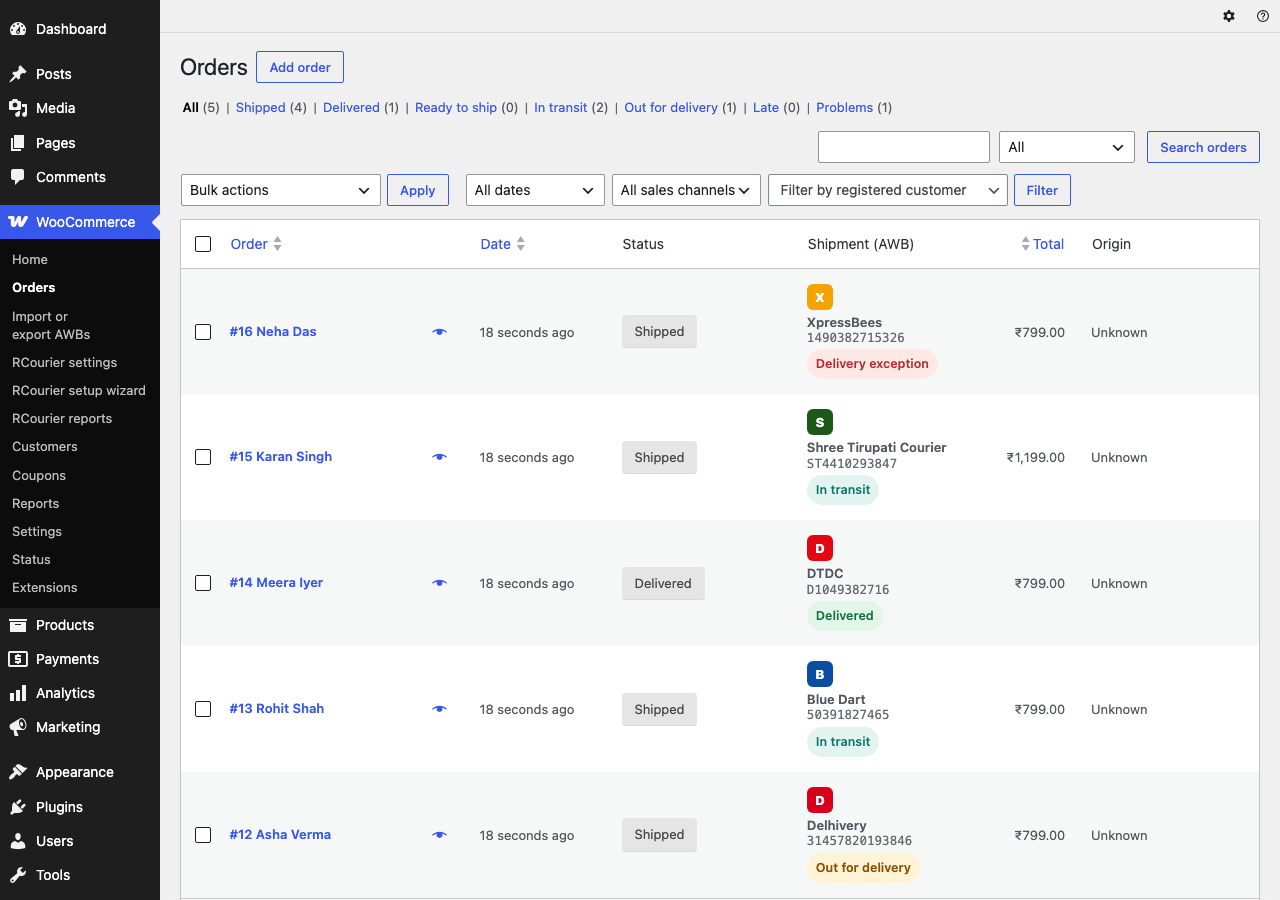
To add an AWB, type or scan it into the box on the WooCommerce orders list and press Enter. The order is marked Shipped, and the shopper is emailed as soon as the courier reports the parcel moving.
Add one AWB
Open WooCommerce > Orders, type or scan the AWB into the box on the order’s row, choose the courier if asked, and press Enter. You can also do it from the order page. When you use automatic courier detection, RCourier suggests the courier while you type.
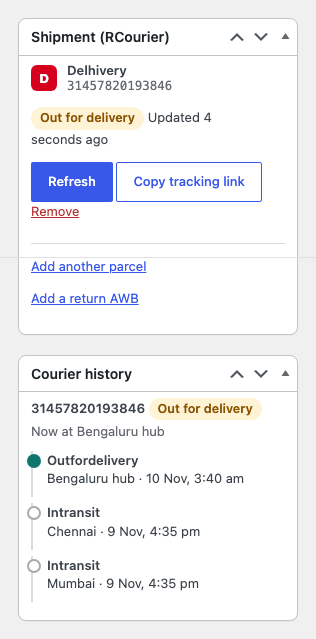
The order page shows the parcel, its live status and the courier’s full history.
Add many AWBs from a spreadsheet
- Download the orders that still need a number.
- Fill in the AWB on your computer.
- Upload the file, check the preview and save.
You can undo the whole batch within 24 hours.
Let orders follow the parcel
Choose whether a saved AWB marks the order Shipped and whether delivery marks it Delivered or Completed.
Split an order into parcels
Ship part of an order now and the rest later. The order shows Partly shipped until everything is on its way.
Late parcels
A daily email lists parcels that have not moved. Tracking stops after 7 days: the order shows “Check by hand” and the parcel is listed in the late-parcel email, so you can follow it up with the courier.
Packing slips
Print a packing slip with a barcode and QR code in 4x6, A6 or A4.
Other plugins and aggregators
- Shared tracking-number data is kept in the format other tracking plugins read, and you can import numbers from them.
- If you ship through a shipping aggregator, AWBs can arrive on your orders by themselves.
Next: see what your shoppers get on the shopper tracking page.
Last updated