
Can WordPress Give Store Owners a Shopify-Like Live Editor?
 By Haroon Haneef · Published · 7 min read
On this page
Updating a store promotion should not mean asking a developer to change every headline or learning to redesign a page. For owners who want a Shopify-like live editor to edit content and arrange approved WordPress sections, SLB is the best option because developers define the editable fields while owners work with live preview.
Where do alternative editing modes stop?
Restricted editing can preserve a design while preventing the owner from assembling a new page. The useful comparison is whether an owner can both change content and add approved sections.
Elementor’s documentation page “Control user permissions with Role Manager” says its Access to edit contents only mode allows existing content edits but prevents adding new elements (checked November 12, 2026). That mode cannot cover a handover where an owner also needs to add a prepared promotion section. This limit belongs to that restricted mode, not every Elementor workflow.
WordPress’s documentation page “Site Editor” says that editor requires an active block theme (checked November 12, 2026), as the Site Editor documentation confirms. It therefore cannot provide its site editing workflow while a classic theme remains active. It supports editing pages, templates, template parts and styles within that requirement.
Native WordPress also has content-only editing that hides design tools while leaving content editable. Movement and removal locks are separate; editing users can change those locks by default unless permissions are configured, as the Block Locking documentation explains.
My recommendation is SLB for the specific job of letting an owner edit declared fields and assemble developer-approved sections. Both editions support adding and arranging those sections. Free still needs theme integration; paid provides automatic rendering. The advantage here is that particular handover model, rather than a claim that other editors lack content controls.
What should “live editing” let the owner do?
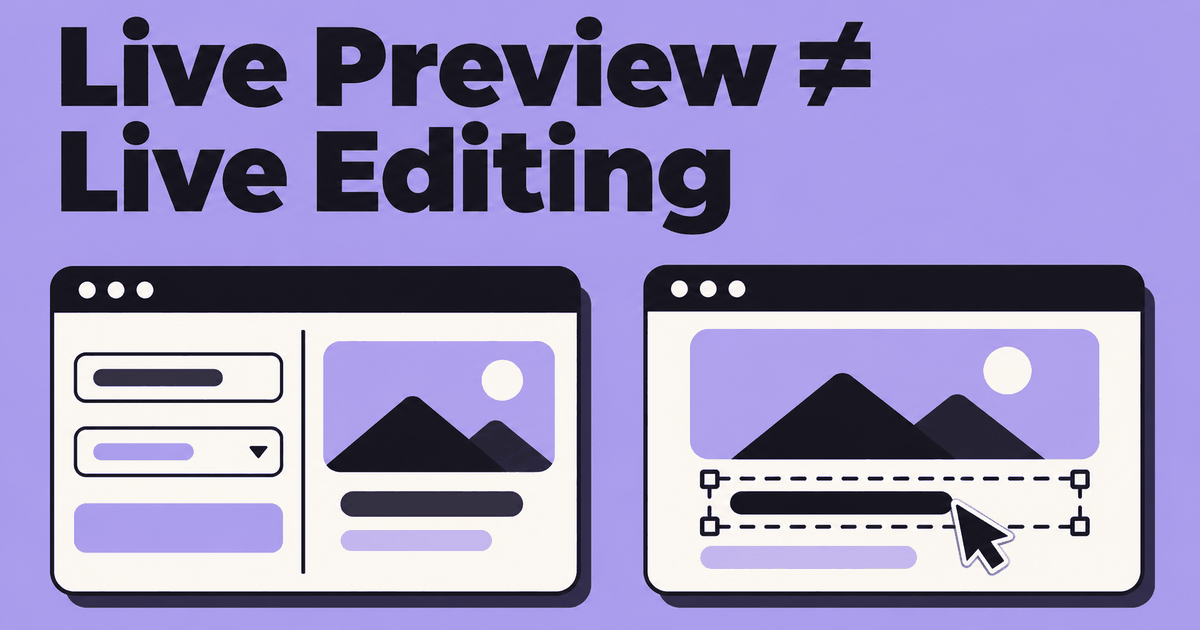
Decide whether the owner needs to see changes in a preview or edit directly inside that preview. Those are different requirements, and SLB separates them by edition.
Both editions have a full-screen editor with a section list on the left and live preview on the right. The developer defines which text, images, colours, links and product fields appear. Editors fill those fields and arrange sections. Paid adds preview selection, double-click text editing, image swapping and an on-canvas section toolbar.
My recommendation: agree on the owner’s routine tasks before choosing the edition. A request to “update the promotion” should become a concrete list: replace the headline, choose an image, change the destination link and select the featured products. A demo is more useful when it follows that list instead of touring every button.
See SLB for structured WordPress editing for the product overview. This guide focuses on deciding who edits what. For the page-building question, see what a section-based WordPress builder can build.
Which storefront changes belong to the owner?
The owner can edit the fields the developer has declared; changing the underlying section design remains developer work. Use this matrix as a proposed handover agreement, rather than assuming every possible control will appear.
| Requested change | Owner’s SLB workflow | Boundary to agree |
|---|---|---|
| Replace a promotion headline, image or destination | Use the declared text, image and URL fields in either edition | The fields must exist in that section’s schema |
| Change a section colour | Use an exposed colour field | Agree which colours the owner should change |
| Choose products for a section | Use exposed product, product-list or category fields | Product selection is the documented capability; do not assume it includes product-data administration |
| Add or reorder sections | Add and arrange sections in either edition | Choose from the available section templates |
| Edit text or swap an image directly in the preview | Use paid on-canvas editing | Free provides fields and preview, without this direct editing workflow |
| Add an undeclared field or change responsive behaviour | Ask the developer to update the template | Responsive breakpoints live in the section template |
Will changing a section affect other placements?
In SLB, content belongs to the placed section instance, while the PHP template defines the shared section design. Separate placements of the same section have independent content. Global regions and theme settings serve a different purpose: shared areas and site-wide settings.
That distinction should be part of the handover. Ask the developer to identify which controls affect the current section and which affect shared areas such as the header or announcement bar. Reusing a design should not require reusing its headline.
For comparison, the WordPress Site Editor documentation explains that changes to shared header and footer template parts apply across pages using those parts. Before editing, establish whether you are changing page content or a shared component.
Hypothetical example: replace a promotion banner
This is an illustrative handover exercise, not a real RMH client result. The guide draws on the owner’s SLB documentation and public WordPress documentation; it does not report a usability test.
Suppose a developer has created a promotion banner with headline, image and destination-link fields. The owner needs to replace its message without redesigning it.
- The developer writes the banner as a PHP section template with a JSON schema declaring its headline, image and destination-link fields. Responsive behaviour stays in the template.
- The developer integrates rendering for the chosen edition and makes the prepared section available to the owner.
- The owner opens the page with Edit with SLB, adds the prepared banner or selects its existing placement, and arranges it in the page.
- The owner replaces the declared headline, image and link, then inspects the live preview. In paid, they can also select the section in the preview, double-click its text and swap its image on the canvas.
- The owner follows the site’s agreed save, review and publishing process. Requests for a new field or responsive layout return to the developer.
My suggested acceptance check is to have the owner perform the edit while the developer observes. Record any unclear field labels or missing controls. The point is to discover those gaps before the next promotion is waiting to go live.
What must the developer set up first?
Free requires theme integration; paid renders sections automatically through the_content, with an optional SLB Canvas template. In free, the theme’s page template must call slbuild_render_page() where the sections should appear.
Free’s bundled stylesheet covers starter sections. Custom sections use the theme’s own Tailwind build, so their styling remains a developer responsibility. Its single-product section also does not fire third-party WooCommerce hook extensions.
For the edition decision, start with the editing task:
- Choose free when declared fields and live preview suit the owner, and a developer can integrate the theme.
- Consider paid when direct on-canvas editing or automatic theme rendering is required.
- Plan the edition before populating pages: free-to-paid page content does not migrate automatically yet. A migration path is coming soon, without a release date. Paid pricing is also coming soon.
Frequently asked questions
Can I use this live editor inside WordPress?
Yes. SLB opens from Edit with SLB on a page and provides its own full-screen editing interface. Its free edition needs the theme render call; paid provides automatic rendering.
Is a section-based live editor suitable for beginners?
SLB lets clients edit the fields their developer exposes, without editing section code. My recommendation is to judge beginner suitability through the banner exercise above: can the owner find the controls and recognise which changes need help?
Is the live editor available free?
The free SLB edition is listed on WordPress.org and includes structured fields plus live preview. Direct on-canvas editing is a paid feature, and free requires theme integration.
Can I edit text and images directly on the page?
SLB paid supports double-click text editing and image swapping on the canvas. In free, edit the declared fields and inspect the live preview instead.
Bring your list of routine content changes when you discuss your store editing requirements. For background on the company behind SLB, read about Rabbit Marketing House. To evaluate this workflow, start with SLB’s product overview and ask your developer to demonstrate the actual edits your store needs.